

Appearance
SDK Integration
Once you receive the BiosenseSignal.xcframework file, you are ready to add the SDK to your application.
Follow the steps below to integrate the SDK into your application.
1. Choosing the Appropriate Framework According to Your Business Needs
BiosenseSignal provides two zip archives, each contains a different flavour of the BiosenseSignal framework:
BiosenseSignal_iOS_SDK_XXX.zip- this zip file includes a framework for Camera Sessions Only - Use this framework if your business case requires only camera-based sessions. This framework includes the following embedded libraries:- Segment (version 4.1.8)
BiosenseSignal_Polar_iOS_SDK_XXX.zip- this zip file includes a framework for Camera Sessions and Polar Sessions using an External PPG Device - Use this framework if your business case requires the use of the Polar Verity Sense external PPG sensor in addition to camera-based sessions. Please be aware that this framework embeds some additional third-party libraries, which may potentially cause conflicts with libraries used by your application. Therefore, it is advised to use this framework only when external PPG sessions are intended. This framework includes the following embedded libraries:- PolarBleSdk (version 5.1.0)
- RxSwift (version 6.5.0)
- SwiftProtobuf (version 1.6.0 or later)
- Segment (version 4.1.8)
Please note that in both cases the name of the framework itself inside the zip file is BiosenseSignal.xcframework. To determine the framework type, follow the steps below:
- Open the
BiosenseSignal.xcframework - Open the
ios-arm64 - Open the
BiosenseSignal.framework - Open
Info.plistfile - Find the
Modesetting and check for its value:PRODUCTIONindicates support for camera-based sessions only (option 1 above).PRODUCTION_POLARindicates support for both camera-based sessions and Polar-based sessions (option 2 above).
2. Copy Framework to Project
- Open Finder.
- Copy
BiosenseSignal.xcframeworkto your project directory (or subdirectory, as 'Frameworks' for example).
3. Add Framework to Project
In order for your app to use the BiosenseSignal Framework, it must be added and embedded in your app.
To do this, follow these steps:
- Select your Project in the project navigator.
- Select your Target.
- Select the General tab.
- Scroll down to the Frameworks, Libraries, and Embedded Content section.
- Tap the + button.
- Navigate and select to the
BiosenseSignal.xcframework. - Tap Add.
- Ensure that the
BiosenseSignal.xcframeworkis set to "Embed & Sign".
The following screenshot is taken from the SDK Sample App. 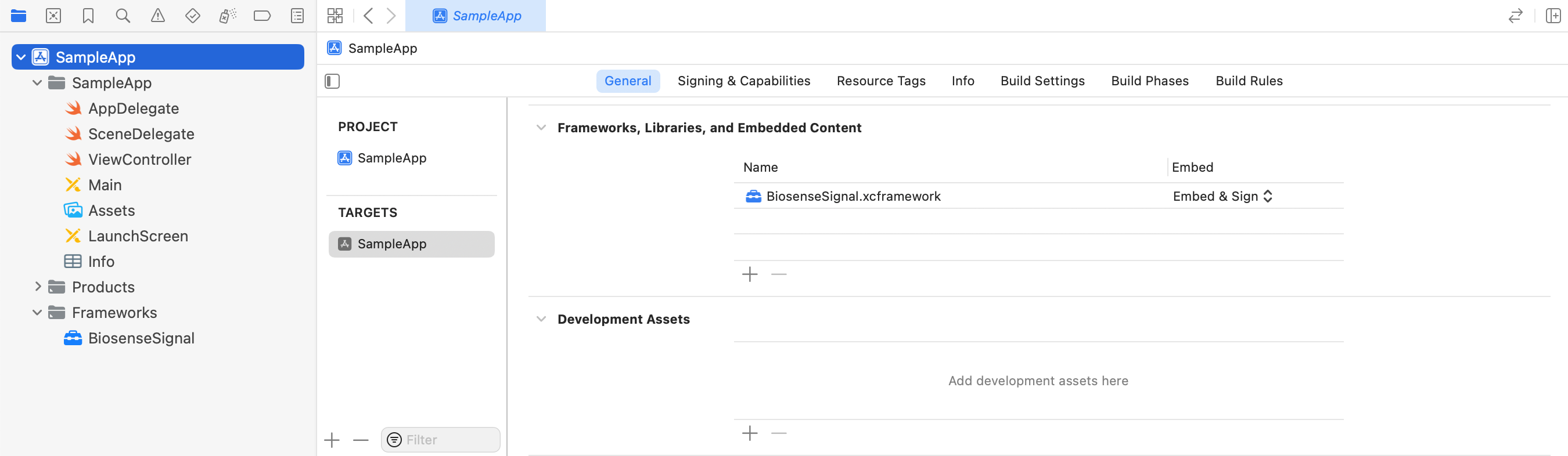
4. Import the BiosenseSignal Framework
In your code, import the BiosenseSignal Framework by adding the following line at the top of your file:
Swift
import BiosenseSignalObjective-C
#import <BiosenseSignal/BiosenseSignal.h>5. Add the Necessary Permissions
For the proper functioning of the SDK, specific permissions need to be included in your application's Info.plist file, depending on your use case.
Camera Permissions (Face Session)
To request camera permissions for face measurements, include the following section:
xml
<key>NSCameraUsageDescription</key>
<string>App needs camera access for health measurement, without capturing or storing images or facial characteristics.</string>
Bluetooth Permissions (PPG Devices Sessions)
To request Bluetooth permissions for connecting with Bluetooth PPG devices and enabling Polar measurements, include the following section:
xml
<key>NSBluetoothAlwaysUsageDescription</key>
<string>App needs Bluetooth access for health measurement.</string>
Background Permissions (PPG Devices Sessions)
For background operation during Polar measurements (note that face measurements require foreground operation), add the following section:
xml
<key>UIBackgroundModes</key>
<array>
    <string>bluetooth-central</string>
</array>
6. Handling minimum deployment target errors
If your project's minimum deployment target is set to a version below 14.0, you will encounter an error stating 'available only in iOS 14.0 or newer.'
To handle this error, you can use the following code:
Swift
if #available(iOS 14.0, *) {
  // Code that should run on iOS 14.0 or later
} else {
  // Code that runs on iOS versions earlier than 14.0
}
Objective-C
#if __IPHONE_OS_VERSION_MAX_ALLOWED >= 140000
  // Code that should run on iOS 14.0 or later
#else
  // Code that runs on earlier iOS versions
#endif
7. Simulator Compatibility
The SDK is compatible with the Xcode simulator and will compile and run smoothly.
However, please note that as the simulator does not support camera access, attempting to create a face session will result in an error with the code 'NoCameraError = 1001'.