

Appearance
iOS Sample Application
The Sample Application (also abbreviated as "SampleApp") is a reference project for implementing an application based on the BiosenseSignal SDK.
Building the Sample Application
The following instructions are relevant for the Swift sample applications.
1. Open the Sample App "xcodeproj" in XCode
In Project Navigator under Frameworks the BiosenseSignal marked in Red color. 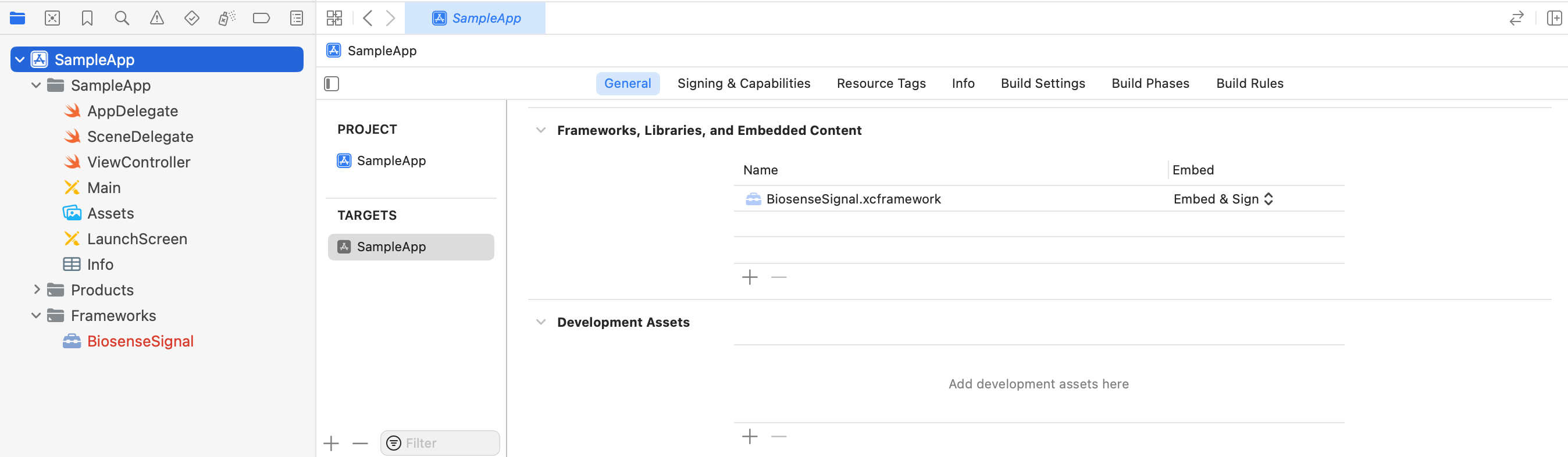
Trying to build the project will result an error There is no XCFramework found at '…/SampleApp/BiosenseSignal.xcframework'.
This will be solved after completing the following steps.
2. Add the Framework to your Project
- Open the Finder.
- Copy the BiosenseSignal.xcframework into the project directory.
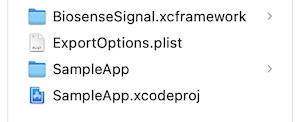
- In
Project NavigatorunderFrameworksthe Red color will disapear fromBiosenseSignal.
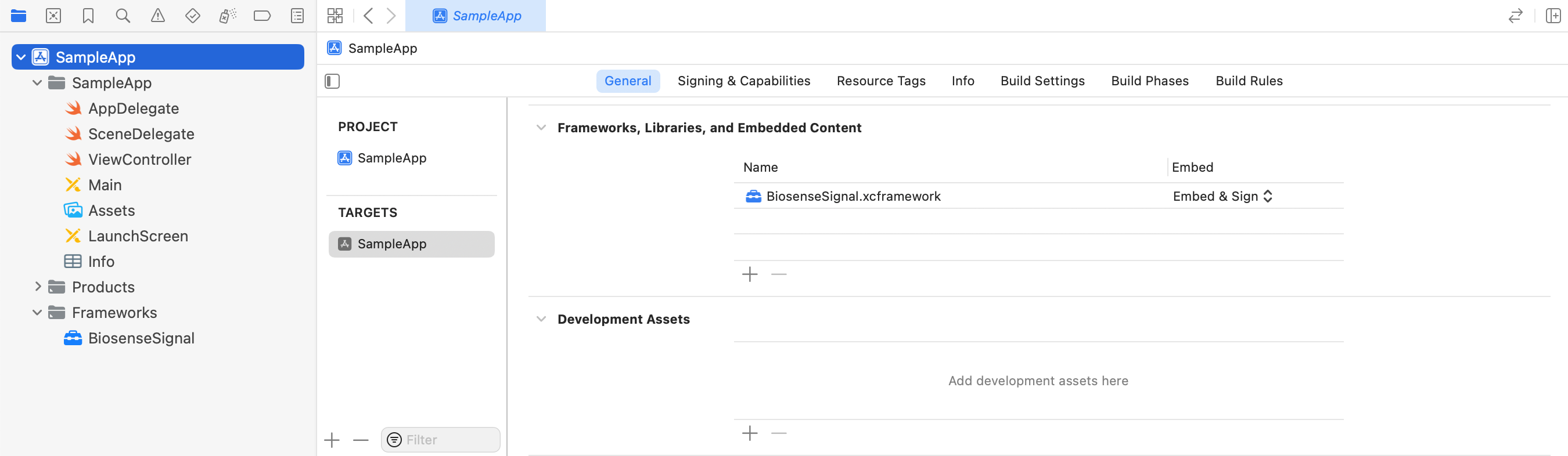
3. Build the Project
Build the project. The build should succeed, without any error.
4. Set the License Key
- Open ViewController.swift.
- Replace the
<ENTER_YOUR_LICENSE_KEY>string with the license key that you received by email.
Swift
class ViewController: UIViewController {

    private static let licenseKey = "<ENTER_YOUR_LICENSE_KEY>"
    private static let measurementDuration = UInt64(60)

    ...
}
5. Configure the Measurement Duration (Optional)
- Open ViewController.swift.
- Update the value of
measurementDurationwith a value between 20 to 180. The value represents the measurement duration in seconds. The sample application allows the user to stop the measurement before the defined measurement duration.
Note
Each vital sign has a minimal measurement duration that is required for calculating its value. Refer to the Report Timings page.
Swift
class ViewController: UIViewController {

    private static let licenseKey = "<ENTER_YOUR_LICENSE_KEY>"
    private static let measurementDuration = UInt64(60)

    ...
}
6. Run the Application
Now the application is ready to run.
- Connect an iPhone or iPad to your computer.
- Click the Start button.
- When asked, allow Camera Access.
Measuring Vital Signs
- Position your face in the center of the camera preview.
- Click the Start button and verify that you see the face detection graphics (bounding rectangle).
- Pulse Rate vital sign values (this is an example of an "instantaneous" value) should be received after approximately 11 seconds.
- After the measurement stops (either by tapping on the Stop button or at the end of the defined measurement duration), an alert with the Pulse Rate and Mean RRi results will be shown (this is an example of a "final" result).
- The final results can be N/A in case of insufficient measuring time.
- Also see the following relevant pages:
- Best practices on how to take a measurement
- SDK Accuracy Targets and Report Times
- SDK Alerts